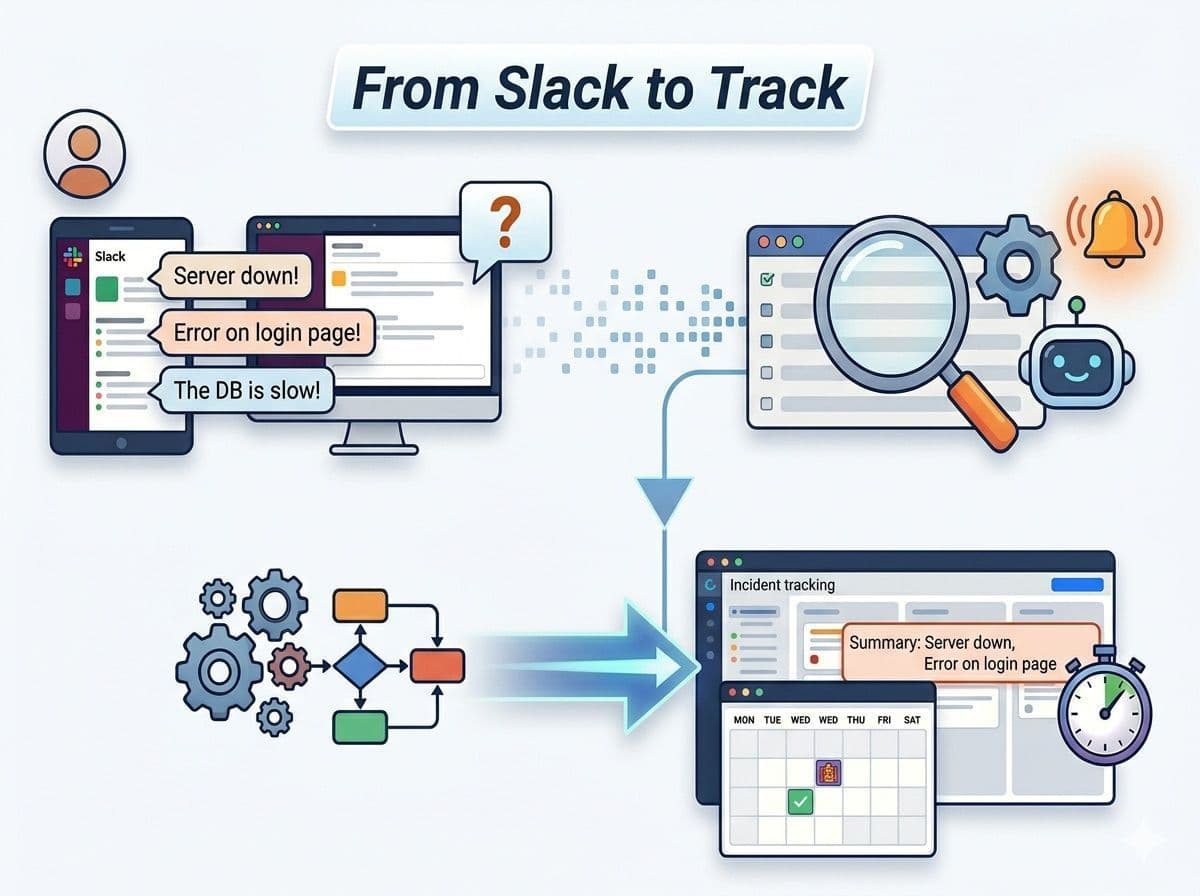
Your Incident Reports Are Already in Slack
Before any monitoring system catches an issue, someone on your team has probably already typed something in Slack:
- "Anyone else seeing 500 errors on the checkout page?"
- "The staging database seems to be down"
- "Customer reported they can't log in"
- "Payment processing is failing intermittently"
These messages contain real-time incident intelligence. But without a system to capture them, they scroll past and get buried. The information exists — it's just trapped in a chat channel.
Slack channel listeners solve this by automatically detecting keywords and phrases in your existing channels and converting them into tracked alerts. No workflow changes required. No new tools for your team to learn. Just smarter listening.
How Slack Listeners Work
A Slack listener watches a single channel for messages matching defined criteria. When a match is found, the listener creates an alert in your incident management system. If you want to cover multiple channels, you create one listener per channel — which also lets each channel have its own keywords, severity, and notification policy.
The basic flow:
- Configure a listener with a target channel and keyword rules
- Slack pushes each new message to the listener in real time (via the Events API — there's no polling delay)
- Message matches keyword criteria → Alert created automatically
- Alert appears in your dashboard with full context: title, description, a link back to the original Slack message, and which keywords matched
- Team acknowledges the alert with a button on the Slack alert message or from the dashboard
Configuring Keywords and Exclusions
The power of listeners is in the rules. A well-configured listener catches real issues without creating noise from casual conversation.
Keyword Matching
Keywords are an include filter: a message must contain at least one of them to trigger an alert. (A listener with no keywords matches every message in the channel — useful for channels that only receive tool notifications, like a Sentry or Datadog feed.)
Good keyword strategies:
Exact phrases (highest precision):
- "is down"
- "can't log in"
- "500 error"
- "payment failed"
- "data loss"
Category keywords (broader coverage):
- "outage"
- "degraded"
- "broken"
- "failing"
- "unresponsive"
Service-specific terms (targeted monitoring):
- "checkout broken"
- "API timeout"
- "database connection"
- "redis OOM"
- "certificate expired"
Exclusion Rules
Exclusion keywords are evaluated before include keywords — if a message contains an excluded term, it never becomes an alert, even if it also contains a trigger keyword. Without exclusions, you'll get alerts from:
- Planned maintenance announcements ("we'll be taking the database down tonight")
- Testing conversations ("I'm going to test what happens when the service is down")
- Routine success notifications from deploy bots
Common exclusion keywords:
- "test", "testing", "staging"
- "planned", "maintenance", "scheduled"
- "resolved", "false positive"
- Distinctive phrases from routine bot messages you don't care about (e.g., "successfully deployed")
The listener automatically ignores messages posted by OpShift's own bot, so alert notifications in the same channel can't trigger new alerts. Messages from other bots and integrations are processed like any other message — that's deliberate, because tool notifications (Sentry, Datadog, PagerDuty, and others) are often exactly what you want to capture.
Grouping Strategies for Listener Alerts
When multiple people report the same issue in Slack, you don't want five separate alerts. Each listener has a grouping strategy that decides whether a new matching message opens a fresh alert or attaches to an existing one as an occurrence. Only the first message in a group sends a notification; subsequent matches update the occurrence count silently.
The strategies:
- None — every matching message creates a new alert. Use this only for low-traffic channels where every message is genuinely distinct.
- All — one open alert per listener; every matching message becomes an occurrence on it. Good for "something is wrong in this channel, one thread of attention" semantics.
- Keyword — one group per matched keyword. Three people typing "checkout is broken" group under the same alert, while a simultaneous "database timeout" report opens its own.
- Title — groups by the message's title line. Best for structured tool notifications (Sentry-style messages), where repeat events share an identical title.
- External link — groups by the external issue URL in the message. Best for tools like Sentry, PagerDuty, or Linear that post repeat notifications linking to the same issue.
For channels where humans report problems, keyword grouping usually matches intuition: same phrase, same problem, one alert. For channels fed by monitoring tools, title or external link grouping deduplicates repeat events far more reliably than keywords can.
This means when three engineers all report "checkout is broken", you get one alert with three occurrences — not three separate alerts with three separate notification storms.
Acknowledging Alerts from Slack
When a listener creates an alert, OpShift posts an alert message to Slack with action buttons:
- Acknowledge — one click marks the alert acknowledged, records who acknowledged it, and updates the Slack message to show the new status and the responder's name
- View Message — jumps to the original Slack message that triggered the alert, so you land directly in the conversation with full context
The same acknowledgment is available from the dashboard, and both paths update the same alert record. Engineers who live in Slack never have to leave it to take ownership of an incident, while the dashboard keeps a proper audit trail of who acknowledged what and when.
Structured Messages from Your Existing Tools
Listeners aren't limited to human chatter. When a message comes from a known tool — Sentry, Datadog, PagerDuty, New Relic, Grafana, GitHub, Linear, and many others — OpShift detects the source from the bot name and link domains, and extracts a structured title and description from the message attachment instead of using the raw text. The resulting alert carries the tool name and the external link, and the title and external link grouping strategies use those parsed fields to deduplicate repeat events from the same underlying issue.
This is a practical way to fold tools you already pipe into Slack into one escalation path without building separate integrations for each.
Practical Use Cases
Customer Support Escalation Channel
Channel: #support-escalation Keywords: "escalate", "urgent", "P1", "production issue", "customer impact" Exclusions: "resolved" Severity: SEV1 (high) Grouping: Keyword
When support engineers escalate customer-reported issues, the listener captures them as high-severity alerts and routes them through the standard escalation policy.
Engineering Incident Channel
Channel: #engineering-incidents Keywords: "down", "outage", "broken", "failing", "degraded", "500", "timeout" Exclusions: "test", "staging", "planned", "maintenance" Severity: SEV1 (high) Grouping: Keyword
Catches organic incident reports from engineers who notice issues before monitoring does.
Deployment Issues
Channel: #deployments Keywords: "rollback", "failed deployment", "deploy broken", "revert" Exclusions: "successfully deployed" Severity: SEV2 (medium) Grouping: All
Captures deployment failures that need attention, ignoring routine success messages. With the "all" strategy, a flurry of rollback chatter during one bad deploy stays on a single alert.
Security Reports
Channel: #security Keywords: "vulnerability", "breach", "unauthorized", "suspicious", "CVE" Exclusions: "patched", "resolved", "false positive" Severity: SEV0 (critical) Grouping: Keyword
Security-related messages get routed as critical alerts with immediate escalation.
Error Tracker Feed
Channel: #sentry-alerts Keywords: none (match every message — the channel only receives Sentry notifications) Severity: SEV2 (medium) Grouping: External link
Every Sentry notification becomes a tracked alert, and repeat events for the same issue group under one alert instead of paging repeatedly.
Best Practices
Start narrow, expand gradually. Begin with a few high-confidence keywords in your primary incident channel. Review false positives after a week and adjust exclusions. Then add listeners for additional channels.
Use severity wisely. Not every keyword match is critical. Each listener sets the severity of the alerts it creates (SEV0 through SEV4), so match it to the channel — the #security listener gets SEV0, #engineering-incidents gets SEV1, a low-stakes feed gets SEV3.
Match the grouping strategy to the channel. Human-report channels usually want keyword grouping; tool-notification channels want title or external-link grouping; only use "none" where every message is genuinely a distinct incident.
Review and tune monthly. As your team's vocabulary evolves and your product changes, keywords need updating. Schedule a monthly review of listener alert accuracy.
Combine with monitoring. Listeners complement monitoring — they catch the issues that monitoring can't. Together, they create a comprehensive detection net.
Don't over-listen. A listener on every channel with broad keywords creates noise. Be intentional about which channels you watch and which terms trigger alerts. You can also deactivate a listener temporarily without deleting its configuration.
Making Slack Work Harder for You
OpShift includes Slack channel listeners with keyword matching, exclusion rules, strategy-based alert grouping, and one-click acknowledgment from the Slack alert message. Listeners create alerts in the same system as your uptime monitors, so everything is tracked in one place with one escalation policy.
Set up your first listener at opshift.io.